WO Mailer
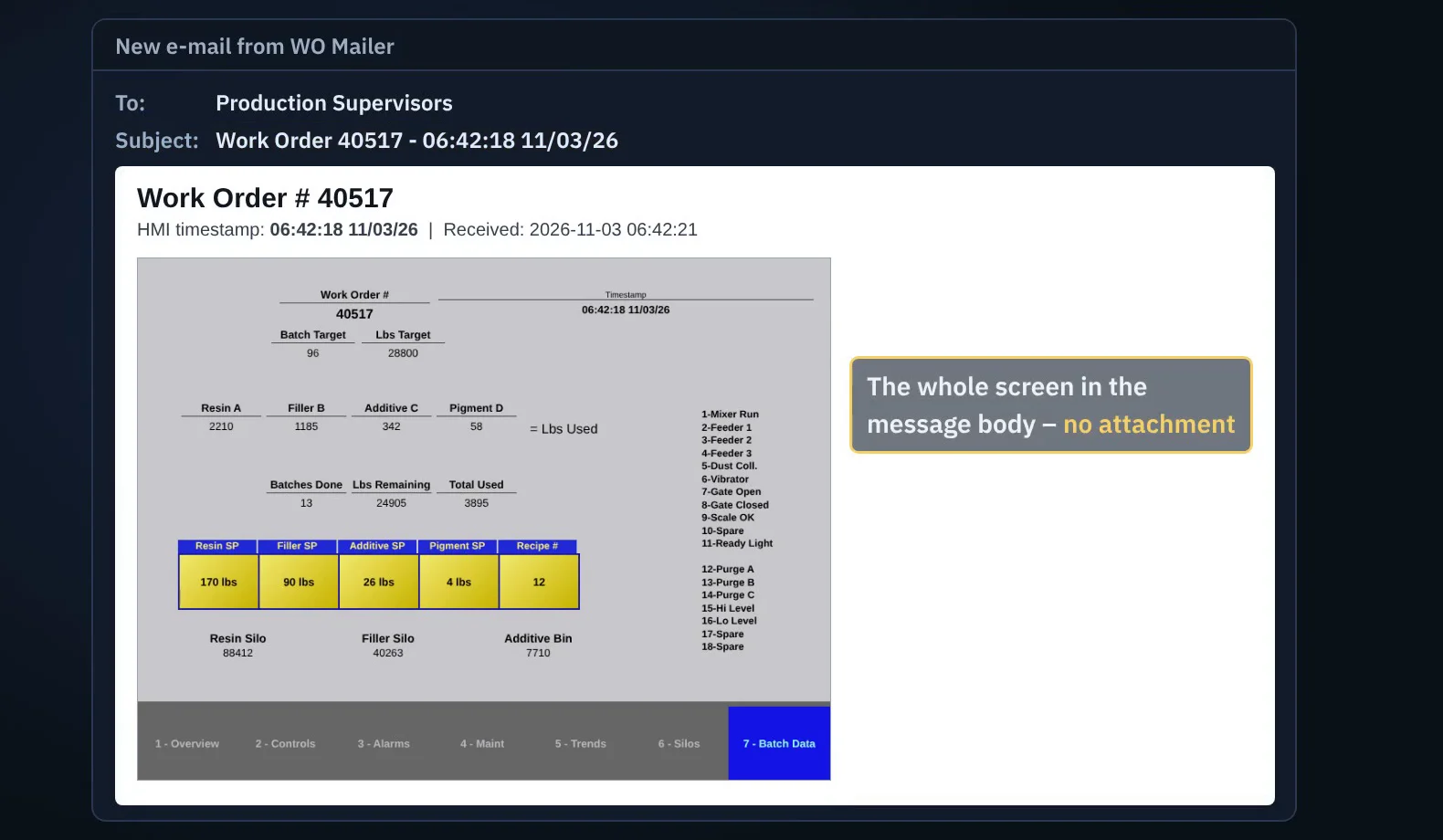
The work order, in the subject line.
Your HMIs already e-mail screenshots. WO Mailer receives them on the plant network, reads the Work Order # and timestamp off the screen, and sends the whole picture in the message body to the right people, through Microsoft 365 or any mail server. A send report proves every one was sent, and with Microsoft 365, read.
Every feature during the trial. No credit card.
From the panel to the people, without anyone forwarding it
Built-in mail receiver
WO Mailer runs its own mail receiver as a Windows service. Point your C-more, PanelView or PLC e-mail settings at the PC's address, port 25, and that's it. No mail server to install, no e-mail program left open, and nothing to forward by hand.
- Accepts mail only from the plant networks you allow
- Starts with Windows and runs with nobody signed in
- Already running hMailServer? WO Mailer can work beside it instead
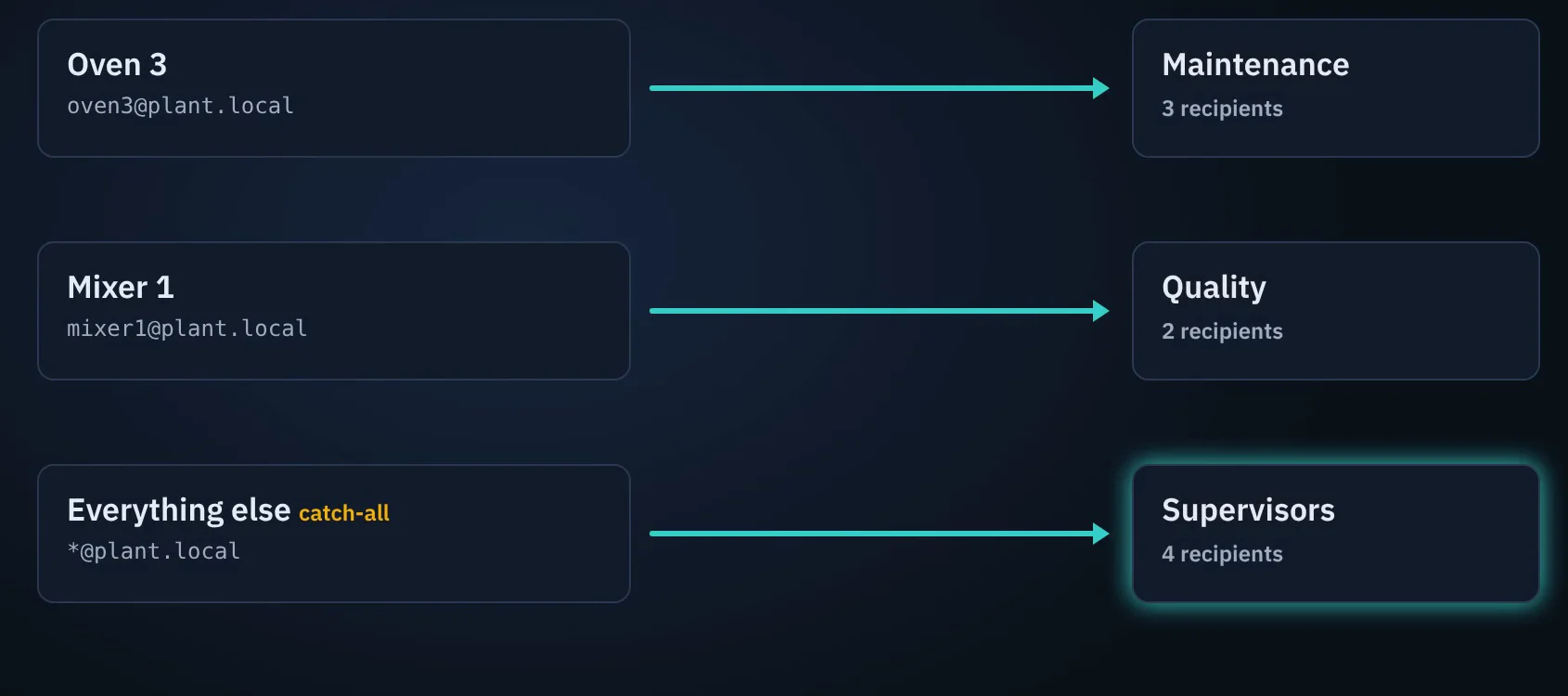
Reads the Work Order # off the screen
When the work order and time only appear inside the screenshot, WO Mailer reads them with Windows' own text recognition, on the PC, with no cloud service, and puts them in the subject: Work Order 40517 - 06:42:18 11/03/26.
- Subject line built from codes you choose
- Turn reading on or off per sender
- Falls back to the received time if the screen has no timestamp
The whole screen in the message body
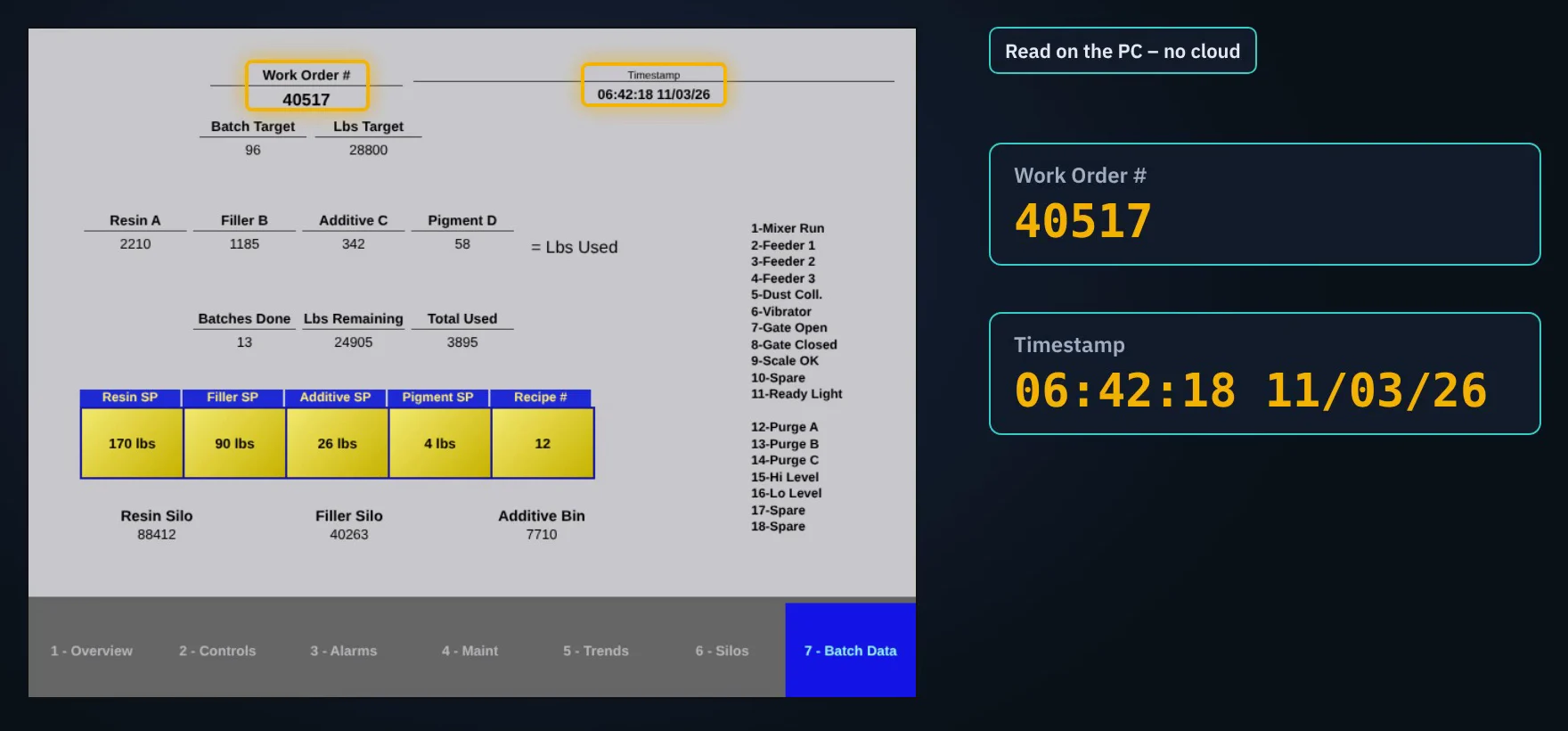
Recipients see the screen the moment they open the e-mail, on a phone or a desk PC, with no attachment to open. Each sender rule sends to its own list: ovens to maintenance, mixers to quality, everything else to supervisors.
- Exact addresses or a whole domain, like *@plant.local
- Catch-all rule so nothing is missed
- E-mails without a picture are passed on with their text
Sends the modern Microsoft 365 way
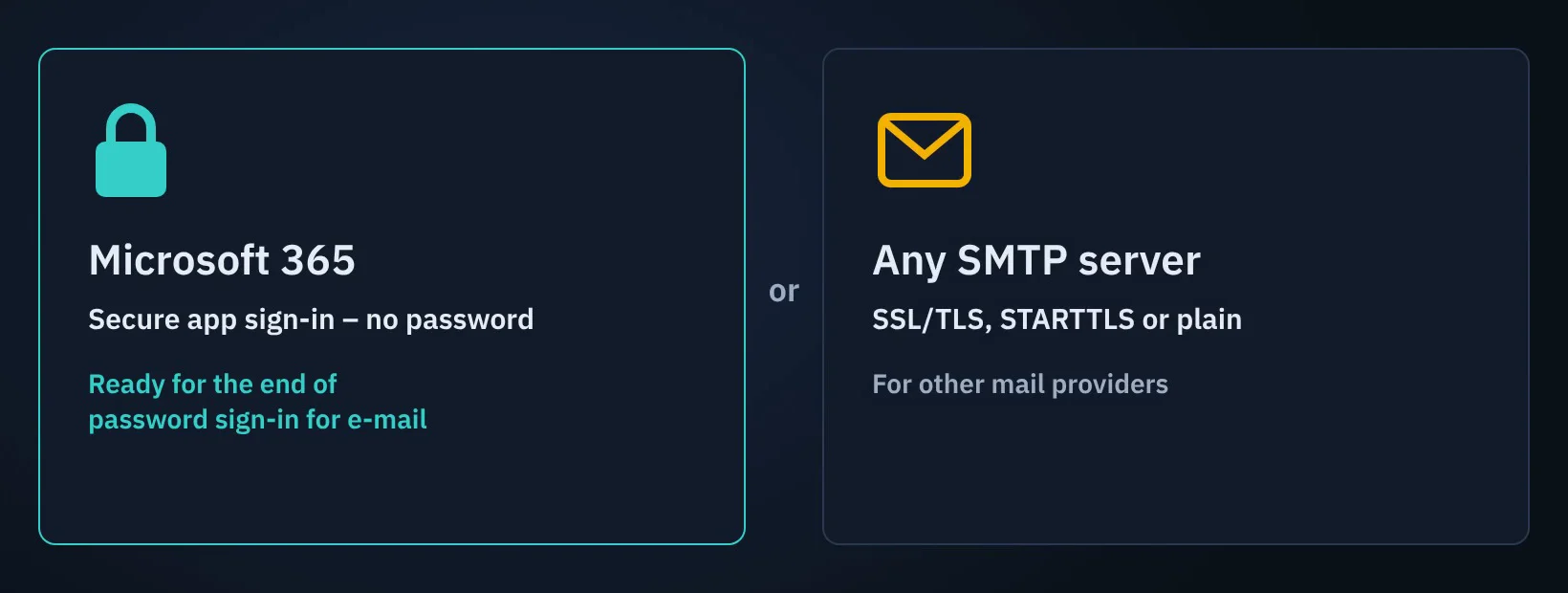
Microsoft is turning off password sign-in for sending mail. WO Mailer signs in to Microsoft 365 as an app, so there is no mailbox password to store or expire. Or send through any SMTP server with SSL/TLS or STARTTLS.
- Secrets encrypted by Windows on the PC
- Every e-mail logged, with one-click resend of failures
- Dark and light screens, with a built-in receiver test
Proof of every e-mail, when someone asks
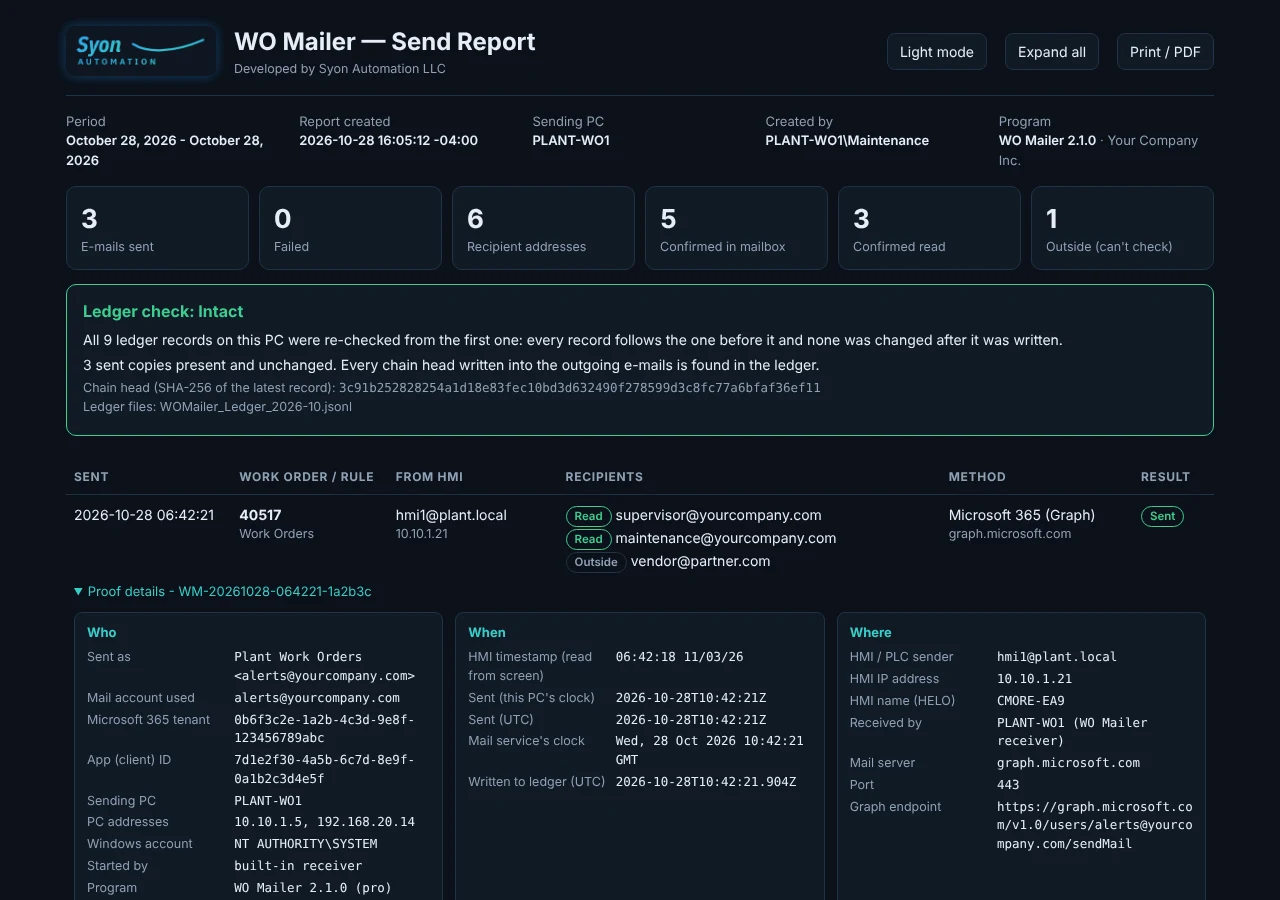
"Did the supervisor get the work order?" Open the send report and show them: when the HMI sent it, when WO Mailer sent it on, who it went to, through which server and how securely, and Microsoft's or the mail server's answer. With Microsoft 365 it also shows when it landed in each person's mailbox and whether they read it.
- Who, when, where and how for every send, with the mail service's tracking ID
- Delivered and read, looked up in your Microsoft 365 mailboxes (Pro, Site and Enterprise)
- Tamper-evident: SHA-256 fingerprints in a hash-chained ledger; print it or save as PDF
One-time purchase. No subscription.
Prices in US dollars, including any sales tax or VAT. Your license key appears on the thank-you page right after payment.
Personal
- 1 PC
- Up to 3 sender rules
- SMTP sending
- Send report with proof of sending
- 12 months of updates included
Pro
- 1 PC
- Up to 100 sender rules
- Microsoft 365 app sign-in and SMTP
- Send report with delivered and read
- 12 months of updates included
Site
- 1 server
- Up to 1,000 sender rules
- Everything in Pro
- Priority support
- 12 months of updates included
Enterprise
- Unlimited servers
- Unlimited sender rules
- Everything in Site
- Priority support
- 12 months of updates included
Try every feature free for 14 days first: download WO Mailer, no credit card.
14-day refund window; see the refund policy. Need an invoice or a purchase order? Send an inquiry or e-mail sales@syonautomation.com.
Running in about 20 minutes
- InstallRun the setup on the PC that sits on the HMI network. It finds the plant networks, starts the receiver and opens the firewall for them.
- Connect your mailPaste your Microsoft 365 app details, or your SMTP server and login. Setup checks them before it finishes.
- Point the HMIsSet each panel's mail server to the PC's address, port 25, no login, no SSL. Send a test from the panel.
- Add sender rulesIn the WO Mailer window, choose which senders go to which recipients. Changes take effect at once.
Register in under a minute
- Buy onlinePick an edition above and pay with Stripe.
- Copy your keyThe thank-you page shows your key and the exact Licensed to name.
- RegisterIn WO Mailer, click Enter license key, type the name and paste the key. It is checked on the PC, with no internet needed. Anything that arrived after the trial ended can be resent with one click.
What you need
| PC | Windows 10 or 11, or Windows Server 2016 or newer, 64-bit, on all the time. Setup adds the Windows Firewall rule for port 25 |
| HMIs and PLCs | Anything that can send e-mail by SMTP: AutomationDirect C-more, Allen-Bradley PanelView Plus and PLCs, Siemens, Red Lion, Maple Systems and others |
| Sending | Microsoft 365 (Pro, Site and Enterprise) or any SMTP server; the PC needs outbound internet, or a mail relay it can reach |
| Internet | Not needed to run or license; only to send the e-mails out |
Frequently asked
Do I need a mail server?
No. WO Mailer has its own mail receiver. If you already run hMailServer on the same PC, setup can use it instead and leave it in place.
Our control network has no internet. Will it work?
Yes. That is what it was built for: a PC with one network card on the control network and one with internet. The HMIs send to the plant side; WO Mailer sends out on the other. No internet at all? Point WO Mailer at a mail server or IT mail relay on your own network instead, and nothing leaves the plant. Panels that insist on encrypted e-mail (STARTTLS or SSL) are supported too.
What if the Work Order # isn't on the screen?
Turn off reading for that sender. The subject can use the HMI's own subject, the sender's name and the received time instead.
What happens after the 14-day trial?
E-mails are still received and kept, but not sent on. Enter a license key and click Resend Failed to send everything that waited. Nothing is deleted.
What's the difference between Personal, Pro, Site and Enterprise?
Personal covers 1 PC with up to 3 sender rules, sending by SMTP. Pro covers 1 PC with up to 100 rules and adds Microsoft 365 app sign-in and delivered / read tracking. Site covers 1 server with up to 1,000 rules and priority support. Enterprise covers unlimited servers and rules across your company; ask for a quote.
Can it prove an e-mail was received and read?
It proves when each e-mail was sent, to whom and how, with the mail service's own tracking ID. With Microsoft 365 (Pro, Site and Enterprise) and the Mail.Read permission, it also looks in each recipient's mailbox in your organization and records when it arrived and whether it was read. Recipients outside your Microsoft 365 can't be checked that way; you can ask them for a read receipt, which they may decline.
Is it a subscription?
No. It's a one-time purchase that keeps working. The first 12 months of updates are included.
Is my data sent anywhere?
No. Screens are read on the PC, and e-mails go only to your own recipients through your own mail account.